Add sampler-like grain, roughen a drum loop or push a source into deliberately chunky steps. Bits changes amplitude resolution; Rate changes time resolution. Their interaction makes this a focused crusher, not a general aging/noise effect.
The loop becomes grainier and more stepped. Reducing Rate deliberately retains moving aliases rather than behaving like a clean sample-rate converter.
For gentler texture, keep Bits around 10-12 and Rate higher. For a stronger rhythmic hold, lower Rate gradually while watching level; this follows the source rather than a tempo-sync clock.
LEARNING ILLUSTRATION — NOT CONNECTED TO YOUR PLUGIN
Bits reduces level detail, not the clock.
Hold Rate fixed while exploring this qualitative explanation. It does not quantize or play an example itself.
Few bits allow only coarse amplitude steps. Very quiet nonzero material can jump to a large step; listen quietly.Middle depths give a more practical grain without the most severe sign-like behavior. Rate still independently sets time resolution.High bit depth preserves fine amplitude detail. Rate reduction, Drive and Filter can still change the source even when Bits is high.
A qualitative explanation, not a calculated response or audio preview. Use the plugin to hear the result.
PARAMETER REFERENCE
A small set of big gestures.
Bits and Rate do different jobs. Add Drive before reduction; use Filter after it to tame the result.
Bits1–24 · Default 12
Sets amplitude resolution. Higher values preserve finer steps; lower values make coarse quantization audible. Integer bit depths are landmarks, but fractional movement is allowed. At one bit the result is intentionally severe and quiet nonzero signals can become loud. Exact silence does not create noise; no dither is added.
Try this: Compare 12, 8 and 6 Bits on the same loop, adjusting Output rather than assuming lower resolution means quieter audio.
Rate100–192000 Hz · Default 22050 Hz
Sets the effective sample-and-hold rate. Lower values hold each sample longer and deliberately create aliasing/stepped movement. Full follows the host sample rate; nominal Hz settings are safely capped by it. This is not a tempo or musical note-division control.
Try this: Try 22.05 kHz, then 8 kHz and 4 kHz. Enter Full to remove reduction relative to the host rate.
Drive0–24 dB · Default 0 dB
Raises the source before bit and rate reduction, with digital-style hard clipping at full scale. It changes both texture and loudness; there is no automatic compensation or Character selector.
Try this: Add 3 dB after finding useful Bits/Rate values, then lower Output if necessary.
Filter500–20000 Hz · Default 20000 Hz
A nonresonant 12 dB/oct low-pass after the crusher. Lower values soften fizz and darken the reconstructed output; 20 kHz blends toward the open state. It does not undo aliasing already created by reduction.
Try this: Try 6 kHz after an aggressive Rate setting, then compare the open end.
Mix0–100% · Default 100%
Blends original and crushed paths. Zero is dry before Output; 100% is fully processed. Parallel blending preserves clean attack under digital texture. Correlated intermediate blends can sound louder, so Mix is not a level-match control.
Try this: Compare 100% with 40% on a drum loop.
Output-12–12 dB · Default 0 dB
Final gain after Mix, independent of how hard Drive hits the crusher. Low Bits or strong Drive can need attenuation; this controls both the dry and wet blend.
Try this: Lower Output before exploring one-bit or highly driven settings.
CHARACTER REFERENCE
One focused processor.
Crush has no selectable Characters or additional sound modes. Its identity comes from six continuous controls, including deliberately audible quantization and aliasing.
KNOW YOUR INSTRUMENT
Find your way around.
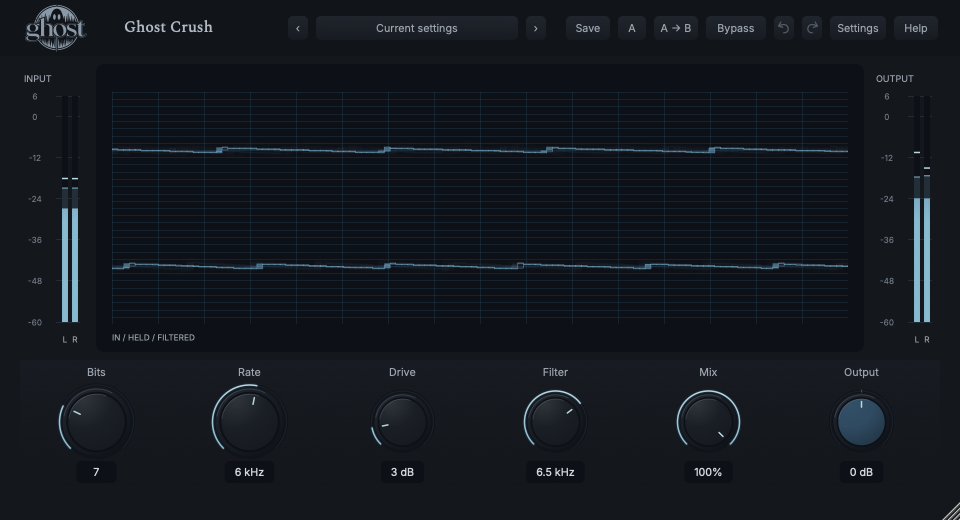
The Quantization Field shows real incoming, held and reconstructed signal information. Bits coarsens vertical resolution; Rate coarsens time resolution. The display is directly playable.
Actual native editor at the example's 7 Bits/6 kHz settings. Guide markers are explanatory overlays. Open full-size capture
Select a numbered control
Choose a marker, or use the complete keyboard-accessible control reference above.
Drag horizontally for Rate and vertically for Bits. Shift-drag vertically changes Drive; Option makes movement finer. One drag is one undoable edit.
Double-click or Home resets Bits and Rate, not all controls. Arrows adjust Rate/Bits; Shift-Up/Down edits Drive. Escape cancels. The context menu offers exact Bits, Rate including Full, Drive and primary reset.
Violet incoming ranges, blue held ranges and a pale reconstructed outline summarize measured short-time ranges, not every sample. Separate stereo lanes preserve signal information; old data fades rather than inventing activity.
HEAR THE IDEA
Put it into practice.
Amplitude steps meet time steps
The original pulsed harmonic source, then real Crush output at 7 Bits and 6 kHz Rate with modest Drive. The post-filter softens some high-frequency edge. Levels are matched for comparison.
Lower Mix to 40% to bring dry attack underneath it.
Adjust Filter for fizz, then trim Output for comparison.
Listen for: A source-related digital layer with some original transient shape retained.
A moving low-rate texture
Use a sustained synth or rhythmic source.
Bits 10 · Rate 2000 Hz · Mix 65%
Find a low Rate that remains musically useful before adding motion.
Assign a slow shared modulation source to Rate with a small amount.
Widen that movement only when obvious shifting aliases are the goal; Rate itself is not tempo-synced.
Listen for: Changing sample-hold artifacts tied to the source, not independent random noise.
GO DEEPER
Beyond the first move.
Try one dimension at a time
Use high Rate while learning Bits, then high Bits while learning Rate. Their combination can mask which change causes an artifact. Drive changes the signal entering both; Filter only shapes the result afterward.
Know which roughness is intentional
Quantization steps, aliases and moving held-sample artifacts are part of this effect. Noise overlays, dropout and aging are not. Mono and stereo share settings; stereo keeps independent paths with a phase-locked reduction clock.
In your session
All six controls support host automation, internal modulation and MIDI CC learn. Bits uses depth units, Rate/Filter logarithmic domains, Drive/Output dB and Mix percentage points. Modulation moves effective values without overwriting the base.
A shared Envelope Follower can use external sidechain for control. That audio is never audible in Crush, and a missing selected sidechain is silent rather than substituted Main. There is no rate tempo-sync mode or note-trigger instrument.
No reported algorithmic latency is added. Same-rate full project recall retains hold/filter/shared modulation state; portable sound settings start signal history cleanly. Bypass drains the short history, Hard bypass clears safely and Panic clears stored audio without resetting knobs.
The preset browser offers All, Factory, User and Favorites, category/search filters and relevant Character filtering. A row's heart changes your personal favorites without loading or saving the sound. Save As creates a distinct User sound; explicit Save updates only the selected User sound. Factory content is protected. Name, category and tags support organization; deleting a User category keeps its presets as Uncategorized. Manage supports rename, duplicate, confirmed delete and individual/bulk/category import/export. Personal favorites stay on this installation rather than travelling in exported sounds.
Standalone and the matching Ghost Rack module share the same User sounds, categories and favorites. A module preset changes portable sound settings, not Rack placement, Rack wet/dry, bypass or modulation assignments. DAW recall embeds the sound settings and does not depend on a preset file remaining on disk. Rack chain presets are a different library and affect the whole chain.
Drag a knob normally, hold Shift for fine adjustment or Option for extra-fine. Double-click restores its default. Enter/context menus provide exact values, reset and value copy/paste; eligible controls also offer MIDI Learn and modulation. Tab and arrow keys provide keyboard access. A/B compares configurations; the adjacent copy button copies the active configuration to the other. Undo/Redo groups a continuous gesture into one edit. Settings provides UI scale, Reduced Motion, source configuration, portable settings and Panic. UI size/motion preferences do not change the sound.
WHEN SOMETHING ISN’T CLEAR
Find your way back.
Why is low Bits louder?
A small nonzero sample can be pushed to a large quantization step at extreme depths. Lower monitoring and Output; there is no automatic gain compensation.
Why does Rate sound like extra pitches or fizz?
Deliberate sample-and-hold reduction retains aliasing. Raise Rate or lower the post Filter if that is not the desired texture.
Why does it still change sound at high Bits?
Rate, Drive and Filter remain independent. Try Full Rate, no Drive and the open Filter when isolating bit-depth behavior.
How do I restore defaults?
Choose Init for all default settings. Double-clicking the field resets only Bits/Rate; use Panic to clear stored audio without resetting the controls.